Recognize.
Visual recognition runs locally, on your PC. No game-memory reading.
 OW Match
Your next match.
A little closer.
Overwatch match alerts, from your PC to your phone.
OW Match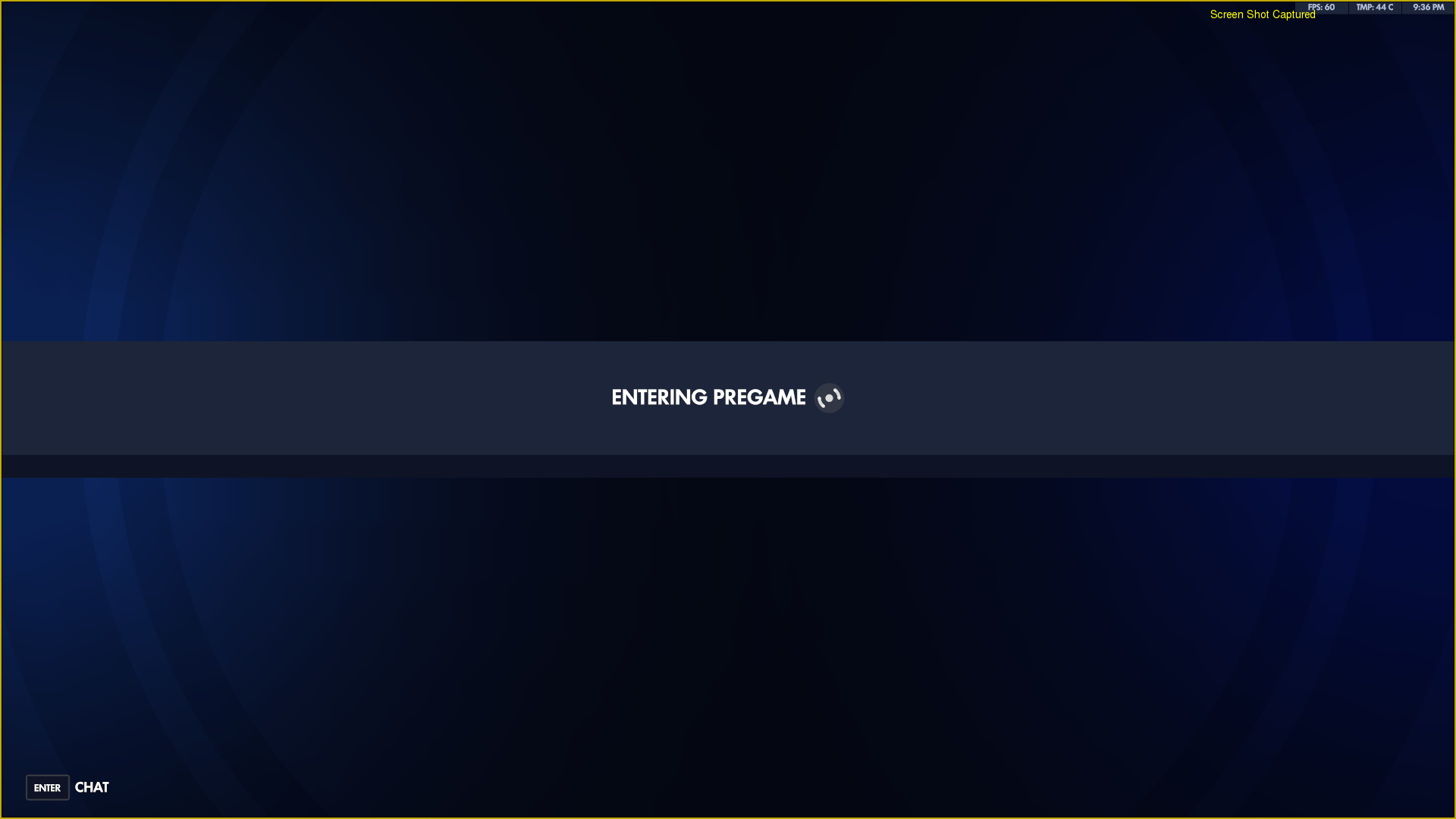 OW MatchReady when it matters.OW Matchnow
Your game is ready. See you there.
OW Match watches for match-found signals on your computer and sends an alert to your paired Android. Keep your PC awake and stay close enough to return.
Visual recognition runs locally, on your PC. No game-memory reading.
A secure pairing links one computer to one phone. A match alert travels through the cloud.
Your phone receives the notification. Return to your match, ready to play.
Pair once. Enable visual alerts. OW Match starts detecting when you open it, and keeps running in the Windows notification area.
Meet your companion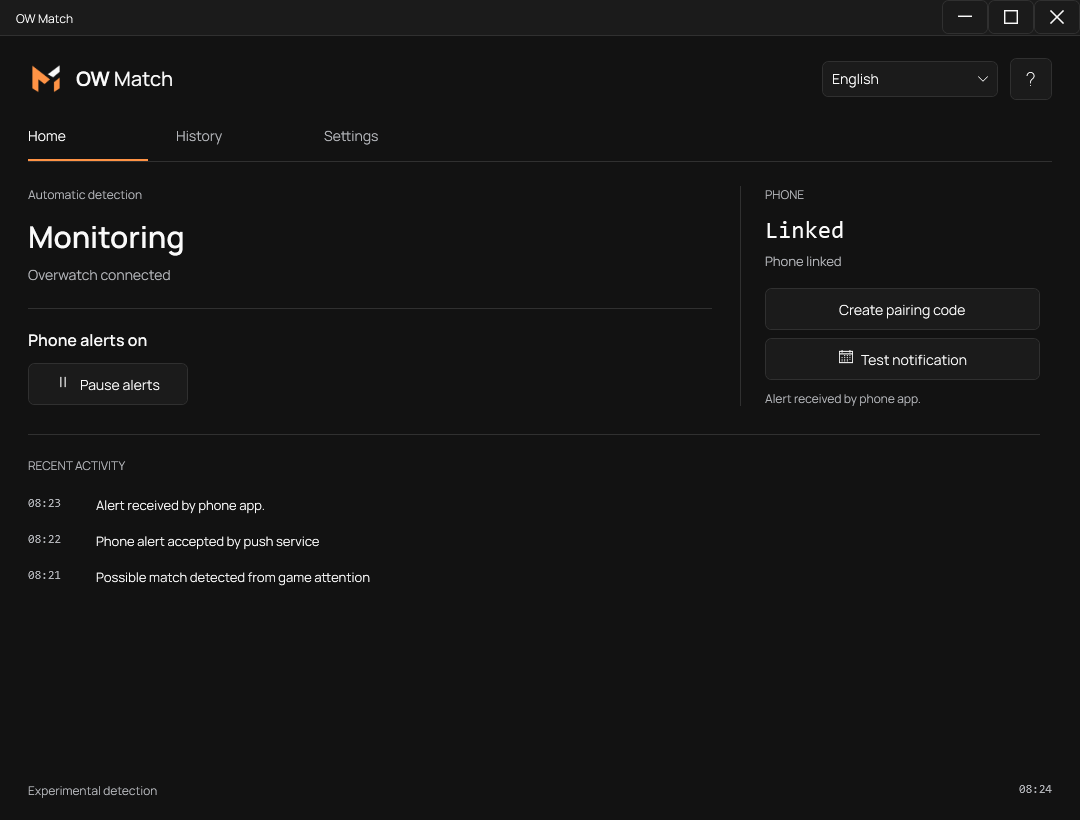
A computer. An Android phone.
Three steps to connect them.
Install OW Match on Windows and Android. Create your account in the mobile app and allow notifications.
Generate a pairing code on your PC. Scan its QR code with your phone, or enter the code manually. Send a test notification.
In Settings, enable game image analysis and visual match alerts. Keep phone alerts on. Minimize OW Match to the notification area and play.
The free beta starts here.
Install both apps to get connected.
Visual detection uses Windows Graphics Capture and local OCR to recognize queue and match-found indicators. Capture is restricted to the Overwatch window, and images and recognized text stay on the PC. It does not read game memory, inject code, modify the client or analyze audio or combat information. OW Match does not ask for your Battle.net login or password; your app account is separate.
Game images are analyzed locally. Pairing and notification delivery use our backend. If you choose automatic diagnostics, technical timelines, error codes and timings are shared to investigate failures. No images, audio or recognized screen text are included. You can disable sharing in Settings.
The server links the PC to the phone and routes the alert through Firebase Cloud Messaging. It receives pairing identifiers and event metadata, such as the time and detection type, not images or recognized text. This lets a phone alert reach you when you are not watching your PC.
OW Match works with Overwatch in fullscreen or borderless windowed mode, in the foreground, background or minimized. We have validated Quick Play and Competitive with the game in English and Portuguese. Keep Windows awake and unlocked and your Android phone connected to the internet. Powered-off monitors still need further validation.
Yes. We have validated visual detection with Overwatch in the background and minimized, without relying on other Windows signals. The app recognizes match indicators in the game window image and sends the phone alert. Keep OW Match running, visual analysis and alerts enabled and Windows awake and unlocked. Detection requires Windows to supply current images of the game window.
OW Match works in fullscreen and borderless windowed mode, including in the background or minimized. If capture fails, the app rejects missing or stale frames; without current images, visual detection is unavailable. There is not yet a specific black-frame check or an option to attach the last frame. To investigate a failure, report the game language, resolution, UI scale, display mode and whether the game was minimized. Optional technical reports do not include screenshots.
No. With visual analysis, visual alerts and phone alerts enabled, detection can work in the foreground or background while the game image is available. You can pause phone alerts without stopping detection.
No. Locking Windows suspends visual detection and alert dispatch. Your computer must remain awake and unlocked. Sleep and hibernation prevent detection too.
No. This is a beta. Game updates, capture availability, internet access and Android notification settings can affect delivery.
OW Match is an independent project and is not affiliated with or endorsed by Blizzard Entertainment or Overwolf. Overwatch belongs to its respective owner.